

Starting from version 5.0.0, the installer for X410 Standalone version automatically adds a systemwide DISPLAY environment variable for X410 display number 0. Hence, once you install X410 Standalone version 5.0.0 or higher, you are ready to use X11 forwarding without setting any environment variable.
However, if you installed X410 via Microsoft Store or X410 is started for a different display number, you still need to manually set the DISPLAY environment variable as outlined below.
Windows 10 version 1809 and higher has a built-in SSH client. It is a portable version of OpenSSH and if its version is 8.1p1 or higher, it also natively supports X11 forwarding. The following outlines how you can properly set up Windows built-in SSH client and X410 for seamless SSH X11 forwarding.

Run X410
X410 always opens 127.0.0.1 (also known as localhost or loopback) at port 6000; this port number 6000 corresponds to the display number 0 in X410. If you start X410 for display number 1, X410 opens a port at 6001, 6002 for display number 2 and so forth, i.e., 6000 + display_number. Hence, you do not need to make any changes to X410; just make sure X410 is running!
Check your built-in SSH client version
C:\> ssh -V
OpenSSH_for_Windows_8.1p1, LibreSSL 3.0.2
If you have an older version, you can try installing the latest version as described below:
https://github.com/PowerShell/Win32-OpenSSH/wiki#installationSet DISPLAY environment variable for Windows
If you are using X410 with its default display number which is set to 0, you can use the following examples as is. However, if you changed the display number via X410 command-line switches, you need to adjust the appending display number; 127.0.0.1:<display_number>.0. For example, if the display number is changed to 1, you should set the DISPLAY environment variable to 127.0.0.1:1.0 (you can also omit the last .0 and just use 127.0.0.1:1).
Windows Command Prompt |
PowerShell |
|---|---|
|
|
If you want to check the DISPLAY environment variable, you can use |
|
|
|
If you want to permanently add the DISPLAY environment variable to Windows, you can use setx command:
setx DISPLAY "127.0.0.1:0.0"Please note that executing setx command prepares the environment variable for the future PowerShell or Windows Command Prompt sessions. Hence, if you have executed setx command in a Windows Terminal tab, you need to start a new instance of Windows Terminal in order to access the DISPLAY environment variable (just opening another tab in Windows Terminal will *not* work).
Start built-in SSH client with -Y option
There is also -X option for X11 forwarding. But that option cannot be used with X410.
ssh -Y <your_user_id>@<server_address>Once you are connected to your server, you can check if X11 forwarding is ready for your Linux GUI apps by checking the DISPLAY environment variable with echo command; executing echo $DISPLAY should show localhost:10.0 or similar instead of a blank line.
Please note that the DISPLAY environment variable on your server is automatically set by the SSH server. It has nothing to do with your DISPLAY environment variable in Windows. Hence you must *not* try to manually override it.
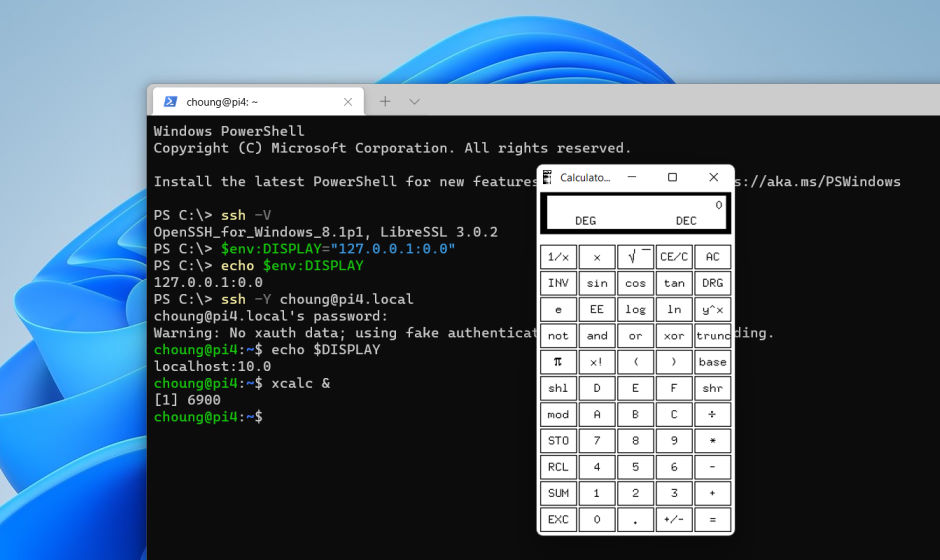
OpenSSH version 9.5 introduced a new security feature ObscureKeystrokeTiming; it tries to protect SSH sessions against keystroke-timing attacks. But unfortunately, this new feature causes significant rendering delays and unresponsiveness in X11 forwarding sessions. Hence if you experience unexpected delays with Windows built-in SSH client for X11 forwarding, try disabling this feature by using -o command-line switch:
ssh -Y -o ObscureKeystrokeTiming=no <your_user_id>@<server_address>If you want to permanently disable ObscureKeystrokeTiming feature for all servers, you can add the following lines to your SSH client configuration file, i.e., %USERPROFILE%\.ssh\config.
Host *
    ObscureKeystrokeTiming no